The project dashboard gives you an at-a-glance view of your project. You’ll see a cherry-picked selection of your releases. You’ll also see where and when they were deployed in your environments, tenants, and channels.
You’ll see one of the following dashboard views:
The view you see depends on whether you’ve added channels to your project and whether you allow tenanted deployments in your project. All views allow you to filter and group your deployments to suit your needs. The default and channels views also show environment status cards.
Default view
This view is shown if:
- You haven’t added channels to your project
- Your project settings don’t allow tenanted deployments
You’ll see a selection of releases and how they are deployed into environments in your project’s lifecycle.
From this view you can deploy releases, create releases, and filter by environments.
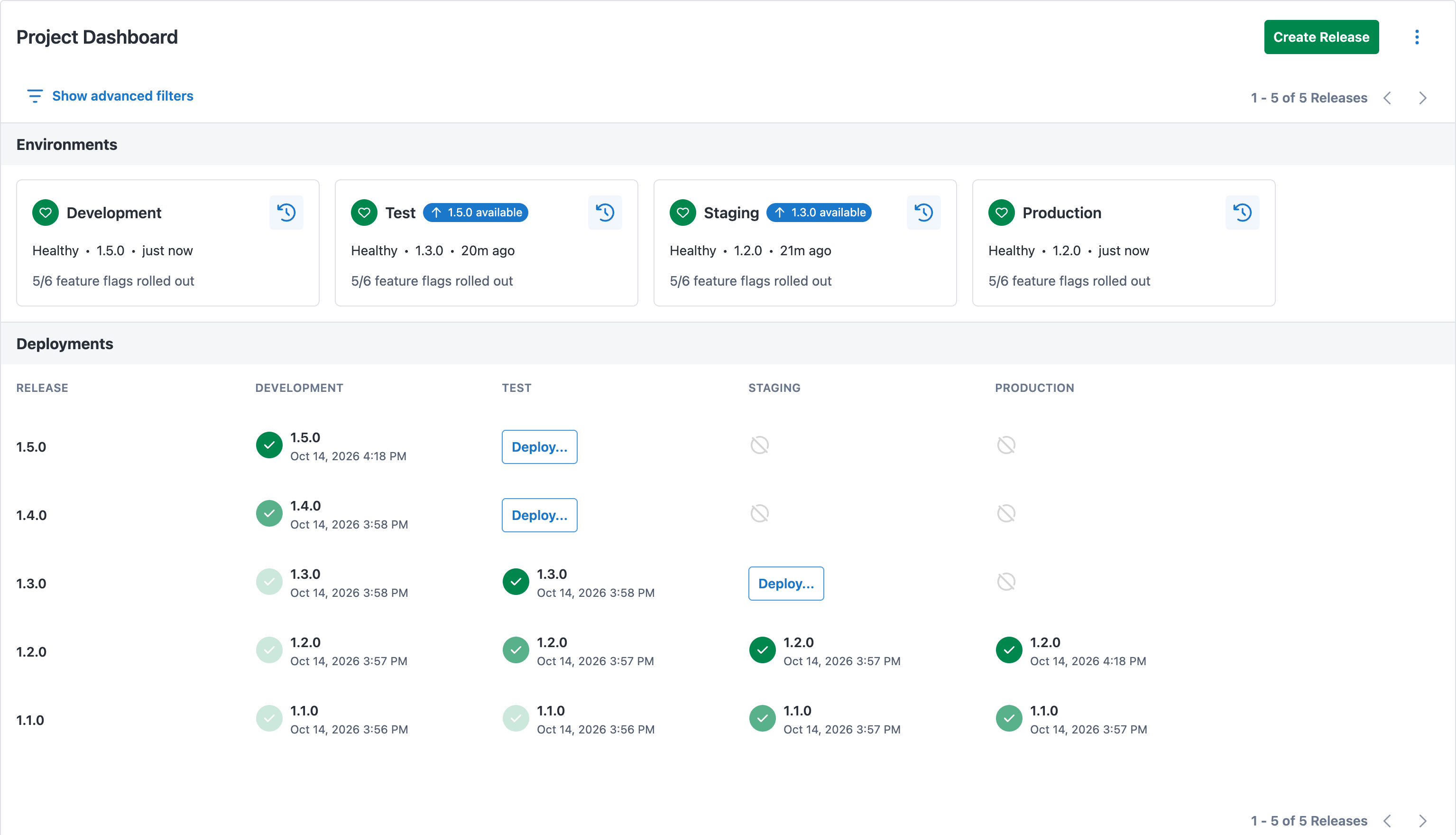
Which releases are shown in the default view?
- For each environment:
- Your most recently deployed release (whether or not the deployment was successful)
- Your next most recently deployed and successful release
- In addition to the above:
- Up to three of your most recent undeployed releases (but only if they were created after you last deployed a new release)
Channels view
This view is shown if:
- You’ve added a channel to your project
- Your project settings don’t allow tenanted deployments
You’ll see a selection of releases for each channel and how they are deployed into environments in each channel’s lifecycle.
From this view you can deploy releases in your channels, create releases, and filter by environments.
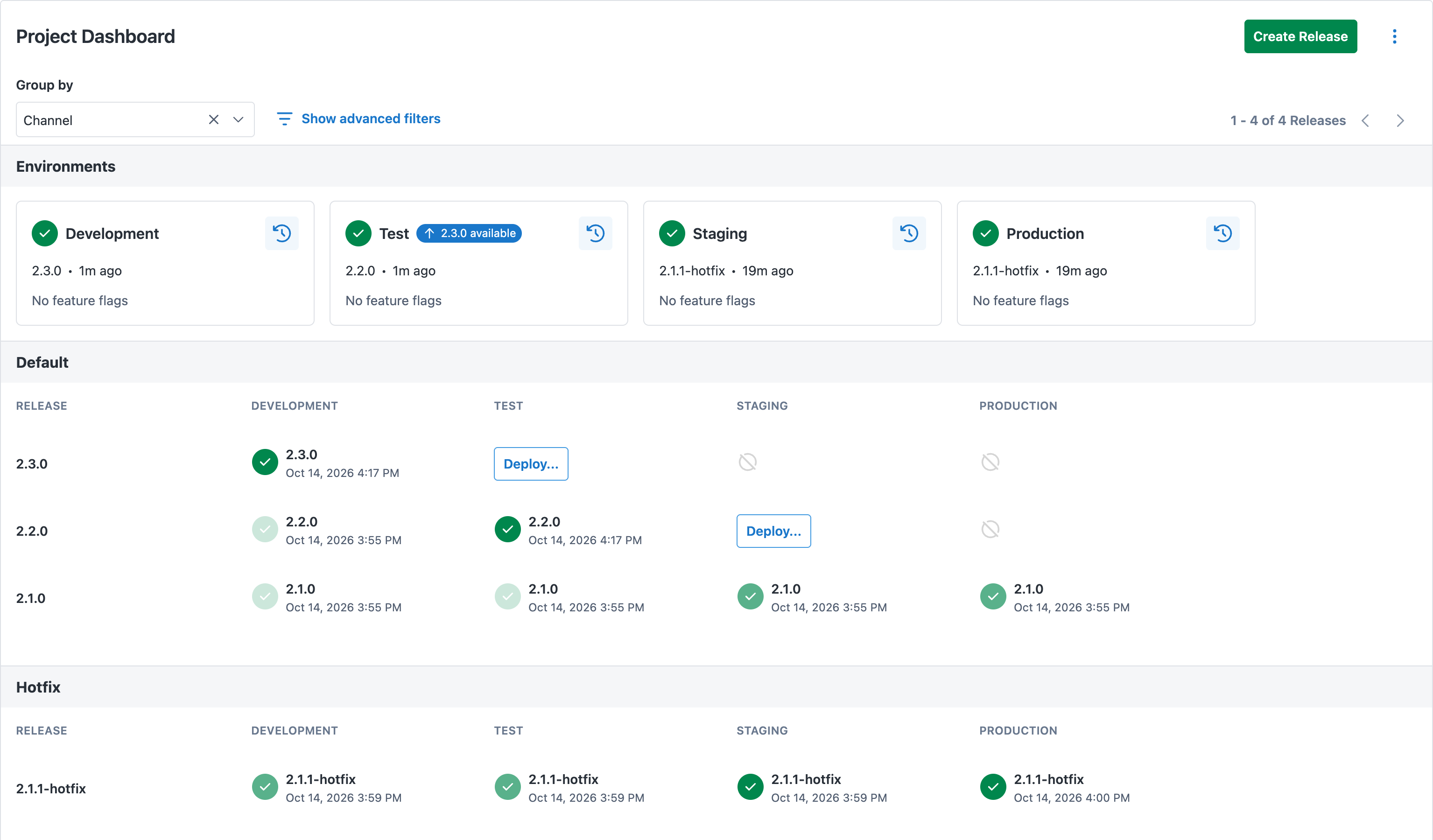
Which releases are shown in the channels view?
- For each environment:
- Your most recently deployed release, whether or not the deployment was successful
- Your next most recently deployed and successful release
- For each channel:
- Up to three of your most recent releases (this count includes any already shown releases)
Environment status cards
In the default and channels views, a card for each environment appears above the releases. Each card shows the environment’s status, the latest release deployed to it, how long ago it was deployed, and how many of the project’s feature flags are rolled out there. When a newer release is available for an environment, its card also shows a badge with that release’s version.
Select a card to open the Environment status page for that environment. Select the history icon on a card to open the environment’s timeline.
Tenants view
This view is shown if:
- Your project settings allow tenanted deployments
You’ll see all of your tenants in your project and a selection of releases deployed to them.
From this view you can filter by release and then deploy the selected release into each tenant’s environments. If the project uses Kubernetes Live Object Status, use the Live Status switch to show live status in place of the deployment status.
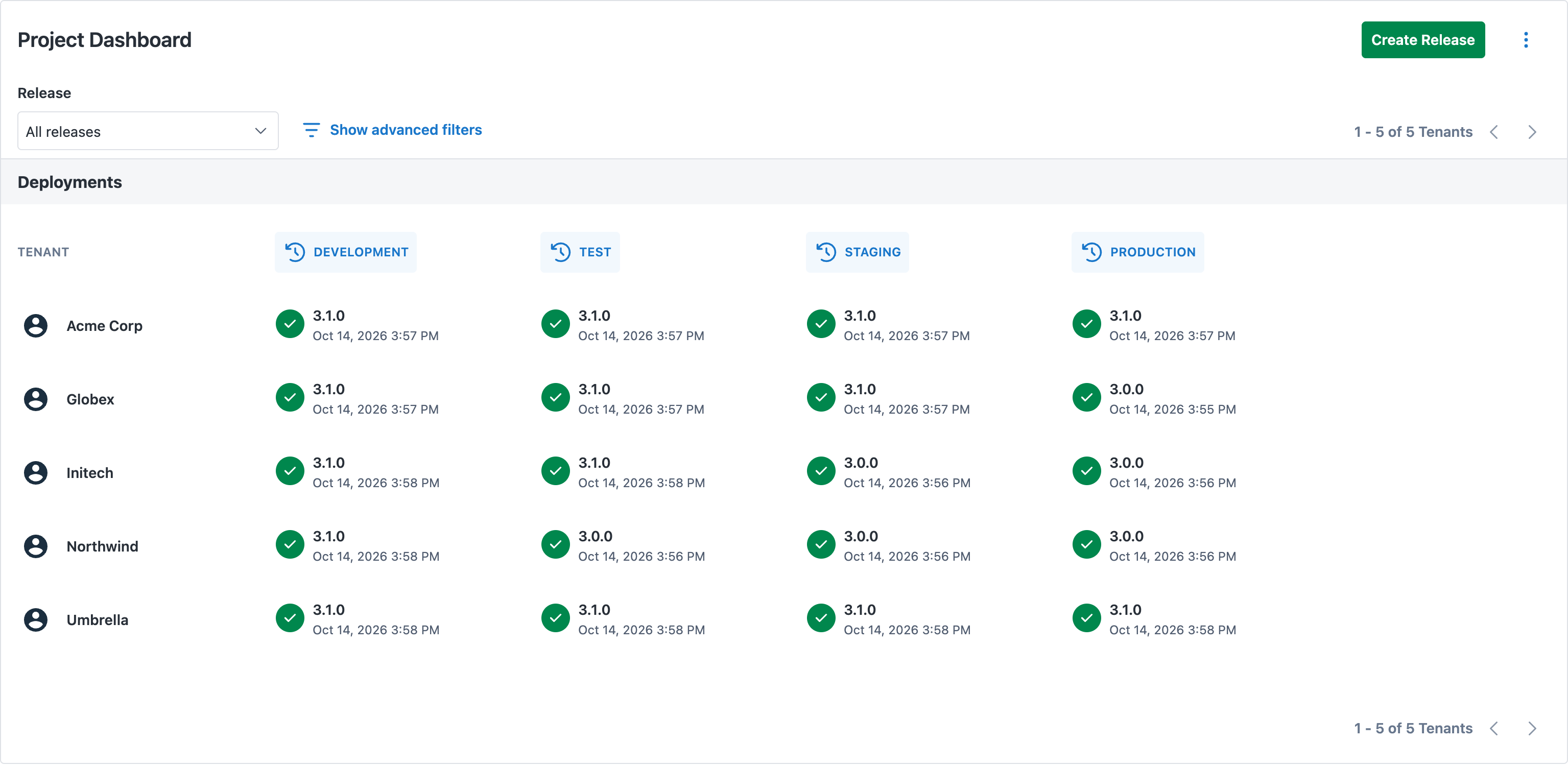
Which releases are shown in the tenants view?
- For each tenant and environment combination:
- The most recently deployed release is shown.
- If untenanted deployments are allowed:
- For each environment:
- The most recently deployed, untenanted release is shown.
- For each environment:
Alternative tenants views
- Group by dropdown:
- When no grouping is selected:
- The environments shown are from your project’s lifecycle.
- When grouping by channel is selected:
- Each channel’s environments are from that channel’s lifecycle.
- When no grouping is selected:
- Project settings for tenanted and untenanted deployments:
- Both tenanted and untenanted deployments are allowed:
- All untenanted deployments are summarized in the first row, labeled ‘Untenanted’.
- Only tenanted deployments are allowed:
- No untenanted deployments are shown on the dashboard.
- Both tenanted and untenanted deployments are allowed:
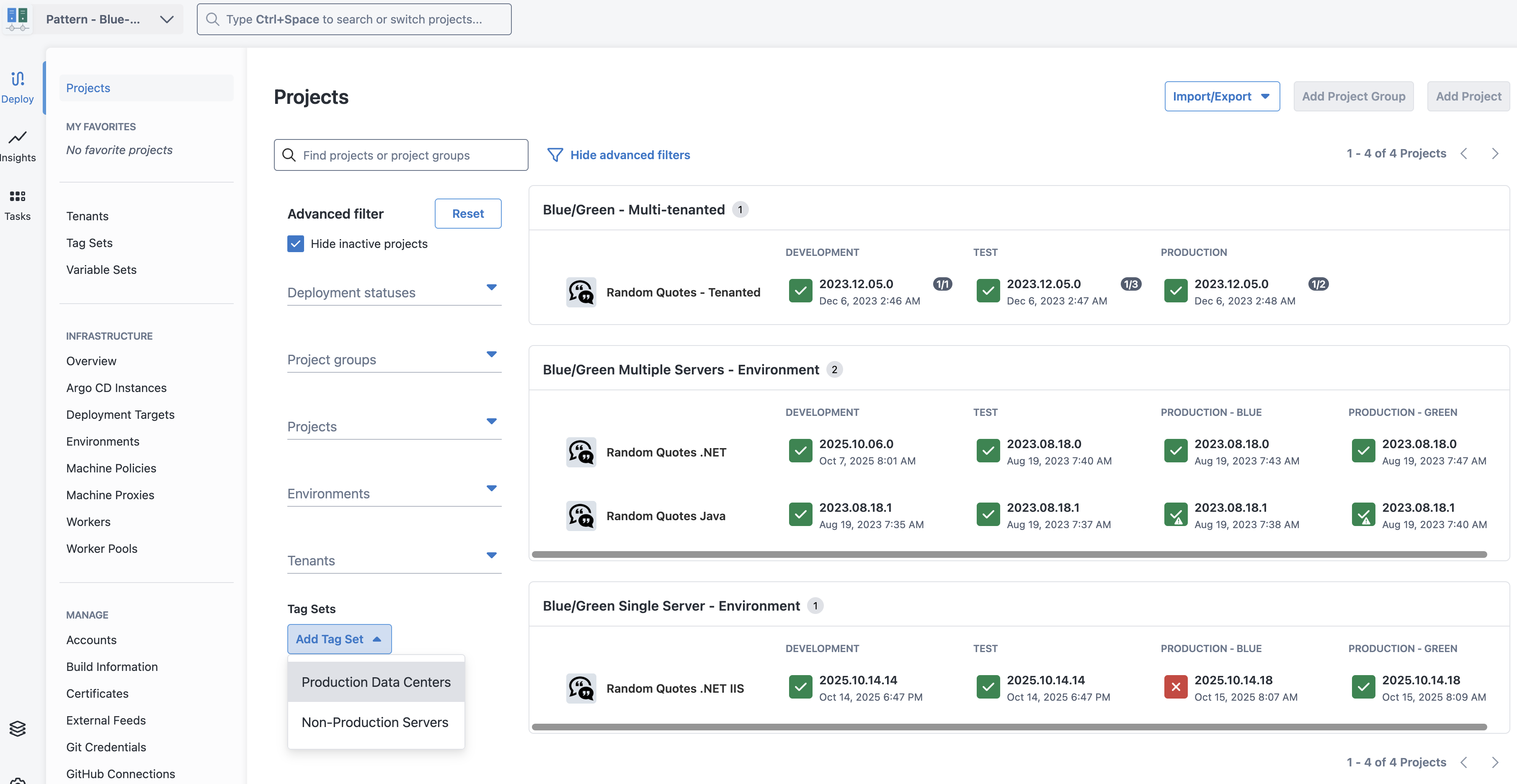
Advanced filtering options
To help narrow down your view to only the projects you need to see, our advanced filtering enables you to:
- Hide inactive projects
- Filter by deployment status
- Filter by live status (where appropriate)
- Filter by tags
Older versions
In versions earlier than 2026.3.4913, you’ll find your filtering options are limited to Project Groups, Projects, Environments and Tenants.